Pro Level Field Note

Wireshark Packet Capture Analysis

A practical SOC-style learning path for reading PCAP files, filtering network traffic, identifying suspicious patterns, and reporting evidence clearly.

This project was built from hands-on Wireshark practice, PCAP analysis, filter references, and Nmap reconnaissance investigation. The focus is not memorizing every feature. The focus is learning how to ask useful questions, inspect packets, and support findings with evidence.

Wireshark PCAP SOC Network Analysis Reconnaissance Nmap Incident Report Blue Team
Source repository

This note is based on the Wireshark learning project repository:

https://github.com/UnExplainableFish52/wireshark

What This Project Is About

A PCAP is a saved record of network traffic. It lets an analyst review who talked to whom, which ports were used, which protocols appeared, and what behavior patterns stood out during the capture window.

This project trains practical packet analysis instead of theoretical memorization. The main skill is learning how to ask good investigation questions and prove answers from packet evidence.

Working principle: Treat packets as evidence. A filter helps narrow the view, but the conclusion comes from repeated behavior, timestamps, source and destination context, protocol details, and clearly documented limits.

Who This Is For

This note is for learners who already understand basic networking and want to practice analysis in a more professional way. You do not need to be an expert, but the following foundations should already feel familiar.

Addressing and ports IP addresses, source and destination traffic, service ports, and the difference between clients and servers.
Network models TCP/IP model thinking, OSI model basics, and how layers help during troubleshooting.
Common protocols TCP, UDP, DNS, HTTP, HTTPS/TLS, ICMP, and ARP at a beginner-friendly practical level.
Suspicious patterns Scanning, brute force attempts, beaconing, exfiltration, denial of service, and cleartext service exposure.

Repository Learning Path

The repository can be treated as a clean learning map. Start with the beginner capture, answer guided questions, then move into the SOC field guide and the Nmap reconnaissance case study.

pcaps/net_ctf.pcapng Beginner practice capture for learning how to open a PCAP, inspect hosts, and reason from packet behavior.
https://github.com/UnExplainableFish52/wireshark/blob/main/pcaps/net_ctf.pcapng
practice_analysis/practice_questions.md Guided beginner questions that turn the first capture into a structured investigation exercise.
https://github.com/UnExplainableFish52/wireshark/blob/main/practice_analysis/practice_questions.md
wireshark_window.png Interface reference for understanding the main Wireshark panes and where investigation controls live.
https://github.com/UnExplainableFish52/wireshark/blob/main/wireshark_window.png
capture_properties.png Capture properties reference for learning duration, file metadata, packet counts, and capture context.
https://github.com/UnExplainableFish52/wireshark/blob/main/capture_properties.png
pcap_analysis_algorithm.md Deeper SOC analyst PCAP field guide for moving from first look to report-ready findings.
https://github.com/UnExplainableFish52/wireshark/blob/main/pcap_analysis_algorithm.md
filters.md Practical Wireshark filter reference for turning investigation questions into display filters.
https://github.com/UnExplainableFish52/wireshark/blob/main/filters.md
pcaps/open_nmap_recon.pcapng Reconnaissance capture used to study Nmap scanning, service enumeration, and packet-level evidence.
https://github.com/UnExplainableFish52/wireshark/blob/main/pcaps/open_nmap_recon.pcapng
nmap_recon/Network_Packet_Capture_Incident_Analysis_Report.md Written case study report that models evidence, limitations, and cautious conclusions.
https://github.com/UnExplainableFish52/wireshark/blob/main/nmap_recon/Network_Packet_Capture_Incident_Analysis_Report.md

Repository Screenshots and References

These screenshots should be reviewed before the pane-by-pane explanation because they give the reader a real visual anchor for the interface and the capture summary view.
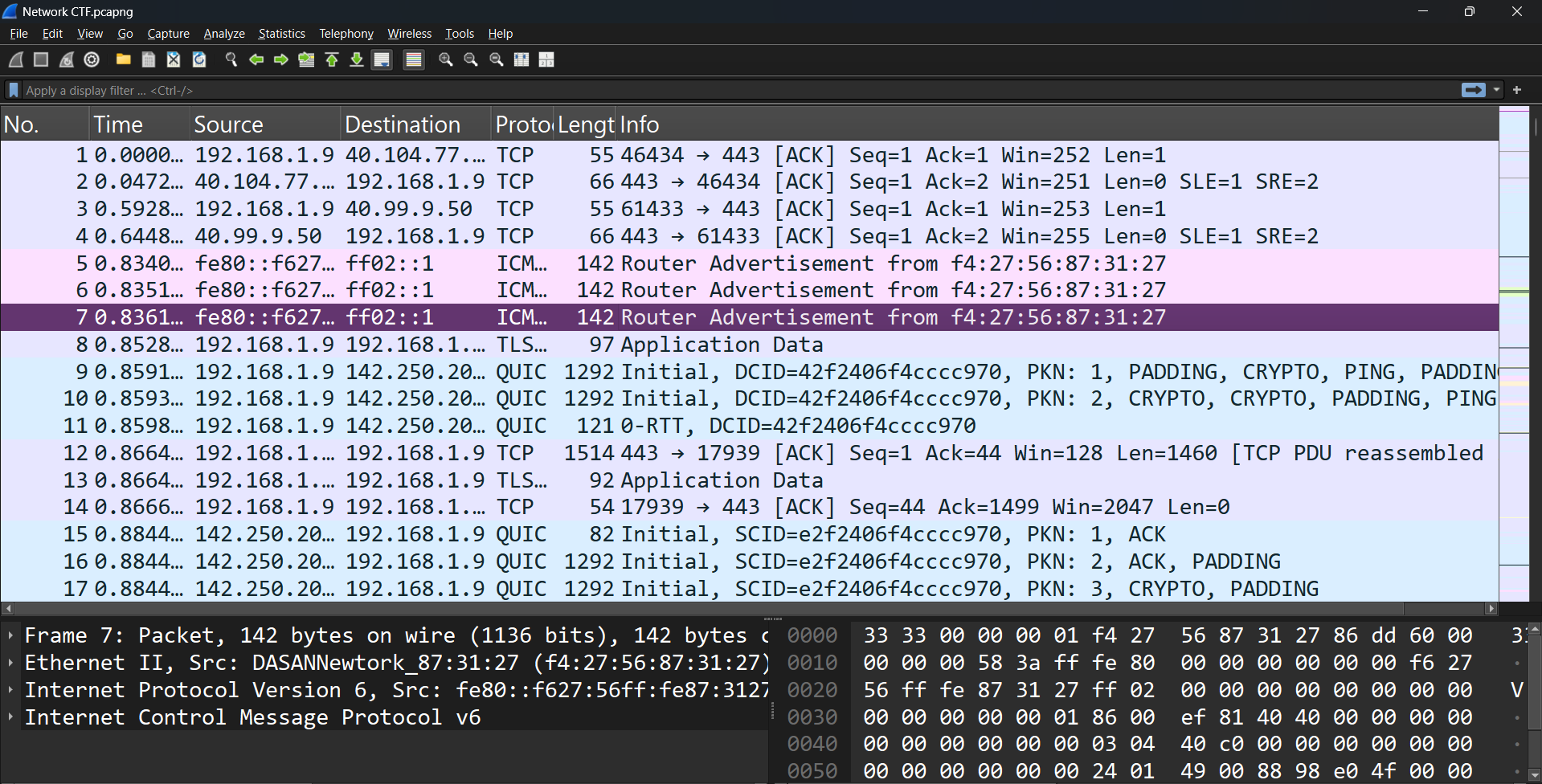
Wireshark window interface reference from the Wireshark learning repository
Wireshark window reference The main packet list, packet details, bytes, filter bar, toolbar, and status area in context.
Open full screenshot
https://raw.githubusercontent.com/UnExplainableFish52/wireshark/main/wireshark_window.png
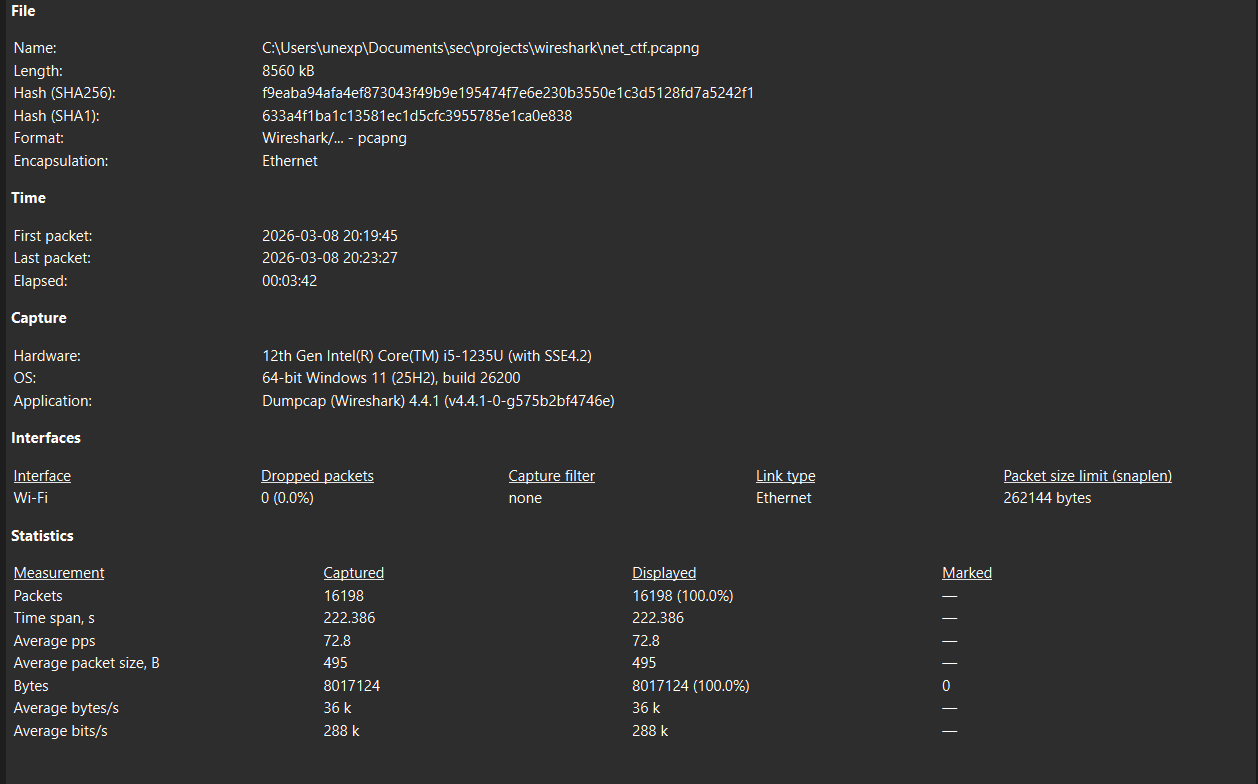
Wireshark capture properties reference from the Wireshark learning repository
Capture properties reference The capture metadata view used to confirm duration, packet count, file details, and analysis context.
Open full screenshot
https://raw.githubusercontent.com/UnExplainableFish52/wireshark/main/capture_properties.png
Note: These images are referenced by full GitHub URLs because this website workspace does not currently include local copies of the Wireshark repository screenshots.

Wireshark Interface Basics

This is a short orientation, not a full beginner lesson. The useful habit is knowing which pane answers the current analysis question.

Packet List Pane The timeline of captured packets. Use it to see frame number, time, source, destination, protocol, length, and the short summary.
Packet Details Pane The decoded structure of the selected packet. Expand protocol layers here to inspect headers, flags, fields, and values.
Packet Bytes Pane The raw bytes behind the selected packet. It is useful when payload text, protocol fields, or exact byte evidence matters.
Display Filter Bar The investigation search box. It hides or shows packets after the capture is loaded, which makes it safer for learning.
Toolbar and Menus Shortcuts for opening captures, navigating packets, managing views, and finding protocol statistics.
Status Bar Quick feedback about capture state, packet counts, profile, and whether the current filter is valid.

Beginner Workflow

The first goal is not to find every interesting packet. The first goal is to learn a repeatable path that turns an unknown capture into a small set of defensible observations.

Practice capture for this workflow

Use this exact PCAP when following the beginner workflow:

https://github.com/UnExplainableFish52/wireshark/blob/main/pcaps/net_ctf.pcapng
1. Open Wireshark Start with a clean view and avoid applying filters before you know what is in the file.
2. Load the practice capture Open pcaps/net_ctf.pcapng and let the full packet list load.
3. Check capture properties Note the file type, packet count, duration, time format, and any capture comments or metadata.
4. Review protocol hierarchy Identify which protocols dominate and whether anything appears unexpectedly often.
5. Review conversations Look for top talkers, repeated connections, unusual service ports, and one-sided traffic.
6. Filter on a host Use ip.addr == <host-ip> to isolate traffic involving one host without destroying evidence.
7. Answer guided questions Work through the practice questions and write down the filter or view used for each answer.
8. Separate facts from guesses Facts come from packets. Guesses are allowed in notes, but they must be labeled as interpretations or unknowns.

First Filters To Learn

Good filters are small and question-driven. Start broad, observe the result, then narrow only when the question becomes more specific.

Filter What it shows Question it helps answer
ip All IPv4 traffic in the capture. Which packets are IP-based traffic?
tcp All TCP traffic, including connection setup and application sessions. Which hosts are trying to establish reliable connections?
dns DNS queries and responses. Which names were looked up, and did responses succeed or fail?
ip.addr == <host-ip> Traffic where the selected host is either source or destination. What did this host send or receive during the capture?
tcp.flags.syn == 1 && tcp.flags.ack == 0 Initial TCP SYN attempts without SYN/ACK. Is a host initiating many connection attempts, possibly scanning or probing?

Filter Thinking Guide

Display filters and capture filters are not the same. Display filters are used after a capture is loaded and only hide or show packets. Capture filters are used before or during capture and affect what gets saved.

For learning, display filters are safer because they do not remove evidence from the file. A filter should answer a question, not simply make the screen look cleaner.

ip.addr == 10.0.0.5 Show all traffic involving one host, whether it sent or received the packet.
ip.src == 10.0.0.5 Show packets sent by one host.
ip.dst == 10.0.0.5 Show packets received by one host.
dns.flags.response == 1 and dns.flags.rcode != 0 Find DNS responses that returned an error code.
http.user_agent matches "(?i)(python|curl|wget|nmap|masscan|zgrab|nuclei)" Look for HTTP clients that may indicate scripts, scanners, or automated probes.
tls.handshake.type == 1 and tls.handshake.extensions_server_name Show TLS Client Hello packets that include server name information.
Discipline: A matching filter is not the same as a finding. It is a starting point for review, comparison, and evidence collection.

Practical Analyst Method

A SOC-style workflow keeps the analysis from becoming random clicking. Move from context to overview, then to hosts, protocols, attack patterns, evidence, and reporting.

Before analysis, ask

  • What is the context of the capture?
  • What do we suspect happened?
  • What is the time window?
Phase 1: Get the big picture Capture duration, total packets, average packet size, file type, timestamp format, expert information, and protocol hierarchy.
Phase 2: Map the network Internal and external IPs, top talkers, conversations, exposed services, and unusual one-way traffic.
Phase 3: Analyze protocols DNS, TCP, HTTP, TLS, SMB, and Windows services, with each protocol reviewed for behavior and evidence.
Phase 4: Recognize attacks Port scanning, brute force attempts, beaconing, exfiltration, and suspicious cleartext protocol usage.
Phase 5: Collect evidence Filters used, timestamps, source and destination, protocol and port, packet or frame references, and confidence level.
Phase 6: Write a report Summary, scope, key findings, evidence, limitations, and recommendations.

Useful Wireshark analyst views

After the first pass, the stronger work comes from cross-checking packet behavior with Wireshark's built-in analysis views instead of relying on one filtered packet list.

Capture File Properties Confirm the capture window, packet count, file metadata, and timestamp assumptions before making a timeline claim.
Protocol Hierarchy Identify protocol mix and high-volume protocol families before drilling into individual packets.
Endpoints and Conversations Find top talkers, repeated client-server pairs, one-sided attempts, and high-volume relationships.
Follow TCP Stream Reconstruct cleartext sessions carefully when payload is visible, while avoiding claims beyond the stream evidence.
Expert Information Use warnings and notes as leads, then verify the relevant packets manually before reporting.
IO Graphs and Time Windows Spot bursts, scanning waves, traffic spikes, and quiet periods that help structure a timeline.

Beginner Practice Finding

The beginner capture shows a clear scanning-style pattern. The evidence is based on packet behavior, not an assumption about the person or tool behind the traffic.

Source capture being analyzed

This finding refers specifically to this file:

https://github.com/UnExplainableFish52/wireshark/blob/main/pcaps/net_ctf.pcapng
Source 192.168.1.111
Target 192.168.1.9
Observed behavior Repeated TCP SYNs
Phase mapping Reconnaissance

192.168.1.111 generated repeated TCP SYN packets toward 192.168.1.9. SYN-only packets across multiple destination ports indicate scanning or probing because the source is repeatedly initiating connection attempts instead of having one normal service conversation.

Evidence wording: The packet pattern supports reconnaissance or probing. It does not, by itself, prove intent, authorization status, compromise, or later exploitation.

Nmap Reconnaissance Case Study

This case study is reconnaissance and service enumeration. The packet evidence shows scanning, service exposure, HTTP probing, banners, and one interactive shell prompt exposure. It does not prove malicious command execution beyond the scanner sending exit in that observed session.

Source capture and report being analyzed

The packet findings in this section refer to the Nmap reconnaissance PCAP and its written report:

https://github.com/UnExplainableFish52/wireshark/blob/main/pcaps/open_nmap_recon.pcapng
https://github.com/UnExplainableFish52/wireshark/blob/main/nmap_recon/Network_Packet_Capture_Incident_Analysis_Report.md
Scanner 192.168.10.100
Target 192.168.20.100
Duration About 7m 11s
Total packets 3,483

Scanning evidence

The scanner sent 1,180 TCP SYN packets to the target across 1,000 TCP destination ports. The target responded with SYN/ACKs on 23 observed open TCP ports. This is strong packet evidence of broad TCP reconnaissance against one target.

Observed open ports

21 FTP
22 SSH
23 Telnet
25 SMTP
53 DNS
80 HTTP
111 RPCBind
139/445 SMB
512/513/514 r-services
1099 Java RMI
1524 shell/backdoor-like service
2049 NFS
2121 FTP
3306 MySQL
5432 PostgreSQL
5900 VNC
6000 X11
6667 IRC
8009 AJP
8180 Tomcat/HTTP

HTTP probe evidence

Nmap NSE HTTP probes were observed through HTTP User-Agent strings containing Nmap Scripting Engine. This supports service enumeration behavior, not just simple port reachability testing.

Legacy service banners

The target exposed legacy Metasploitable-style banners and service identities. These banners are valuable to analysts because they show what services were visible on the wire, and valuable to attackers because they can guide follow-up targeting.

TCP 1524 shell prompt exposure

TCP 1524 returned a root@metasploitable:/# prompt, and the scanner sent exit. That proves exposure of an interactive root shell prompt in packet evidence. It does not prove malicious command execution beyond exiting the session, and it does not prove what happened before or after the capture.

Analyst Judgment

PCAP evidence can show what happened on the network, but it cannot always prove the full story. Good analysis keeps facts, interpretations, assumptions, and unknowns separate.

PCAP can show Network conversations, protocol behavior, visible payloads, service banners, timing, ports, and repeated traffic patterns.
PCAP cannot always prove User intent, endpoint process names, shell history, prior compromise, or post-capture activity. Authorization status cannot be determined from PCAP alone.
Reports should separate Facts from packets, analyst interpretation, assumptions made for context, and unknowns that require more data.

Security Lessons Learned

The project is most useful when the packet analysis becomes general security judgment. These are the lessons that carry into SOC work, incident notes, and defensive reviews.

Broad scans are visible Large numbers of SYN packets across many ports stand out clearly in packet captures.
Banners reveal context Service banners expose version and product clues that help analysts and attackers.
Legacy services raise risk Cleartext protocols and old services increase exposure, especially outside controlled labs.
Labs are not production Metasploitable-style services are expected in training environments but dangerous on real networks.
Nmap NSE leaves clues HTTP User-Agent values and request patterns can identify Nmap scripting activity.
Filters are tools Filters support investigation. They do not replace packet review or evidence-backed reasoning.
Patterns matter One packet rarely proves a full incident. Repeated behavior, context, and corroborating evidence matter.
Final report habit: Describe the Nmap case as reconnaissance and service enumeration unless additional evidence proves exploitation, data theft, malware, persistence, or compromise.